Remove, heal or copy part of a picture
Remove, Spot Heal and Clone, included with Starter, Pro and Studio.
1 min read
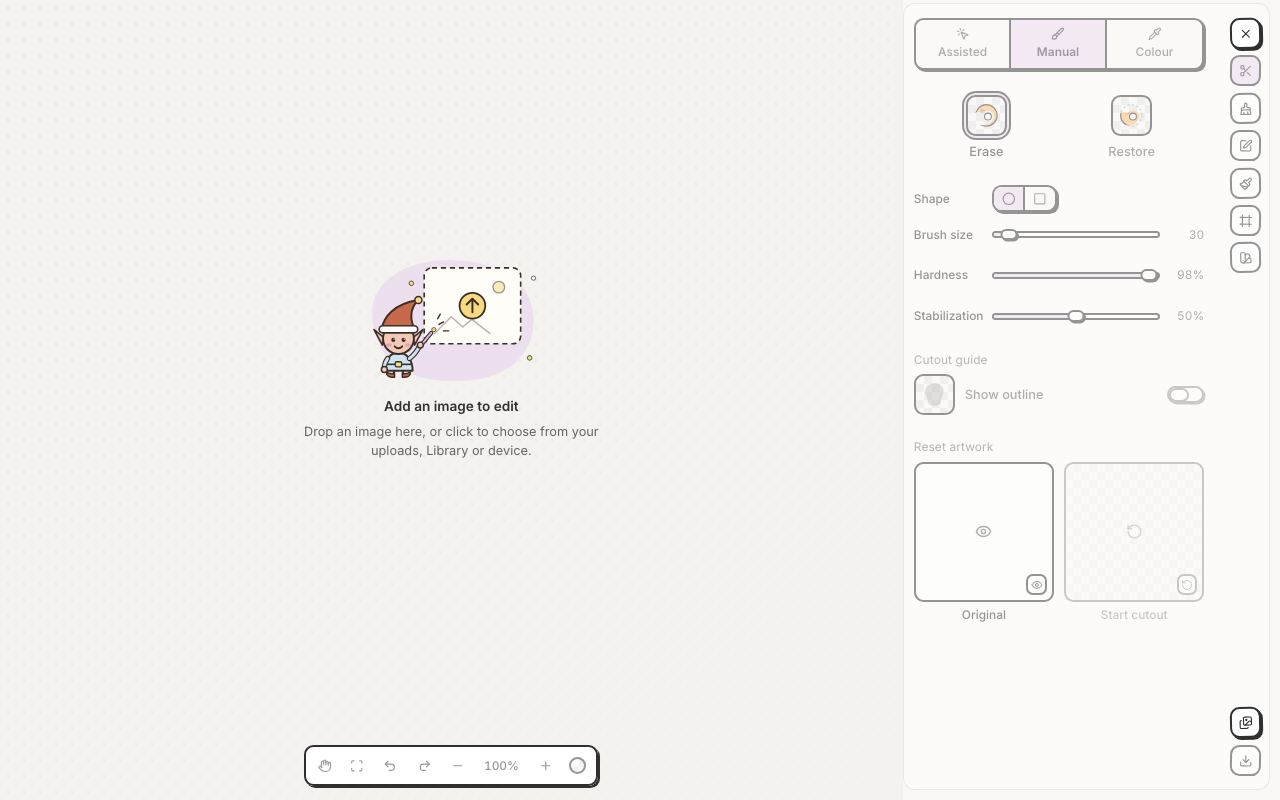
- Click Edit tools in the menu, then Design editor, and open your image.
- Click Remove and Repair in the tools on the right, then pick Remove, Spot Heal or Clone at the top of its panel.
- Remove (shortcut J): paint over something, or draw a loop around it. When you let go, it is filled in from what is around it.
- Spot Heal: dab a spot or a speck. It blends away to match the texture and light around it.
- Clone (shortcut S): Alt-click the spot to copy from (Option-click on a Mac). On a phone or tablet, tap Pick, then tap the spot. Then paint: the brush copies from there. Size and Hardness change the brush.
- Not quite right? Click Undo and try again.
Design Studio has the same tools: select an image, open AI Edit and look under Retouch. Retouch also has Erase, Restore and Remove colour, which every plan can use.