Remove the background of an image
Get a clean, see-through PNG in seconds.
1 min read
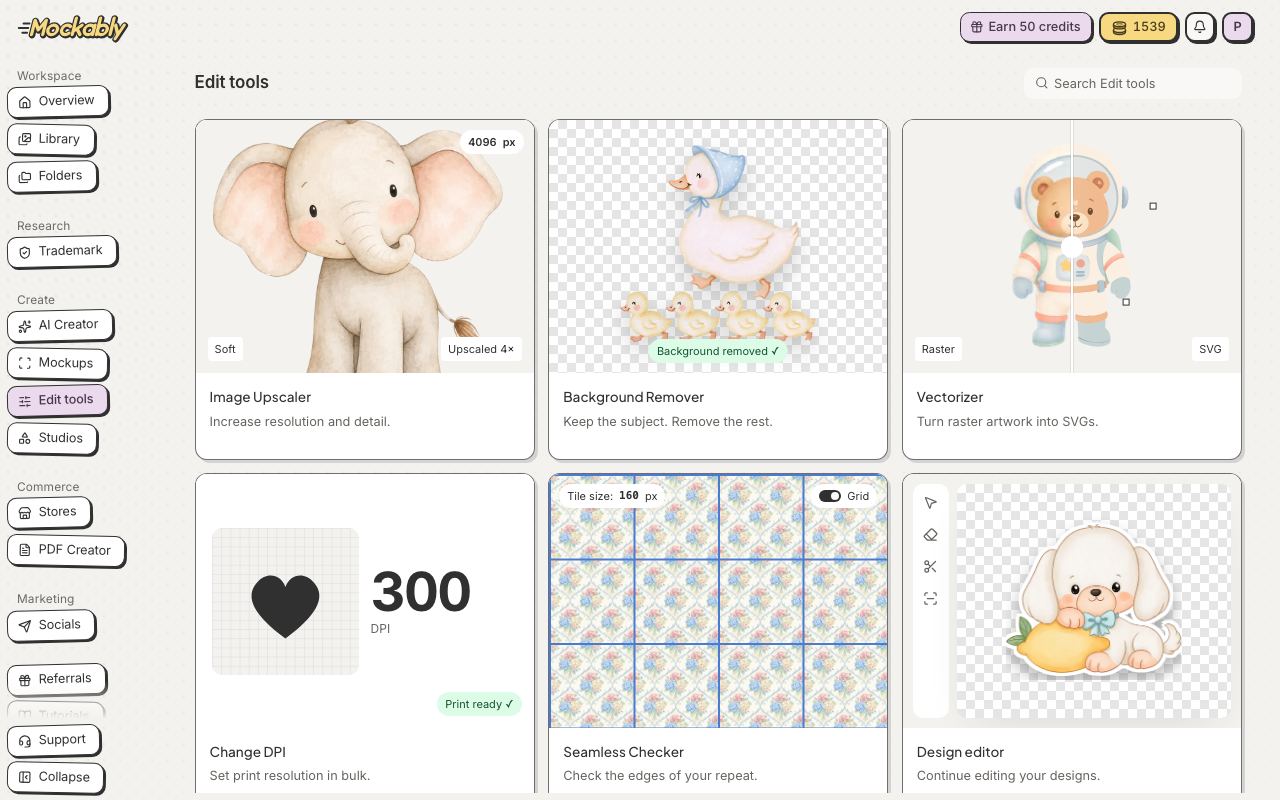
- Click Background Remover.
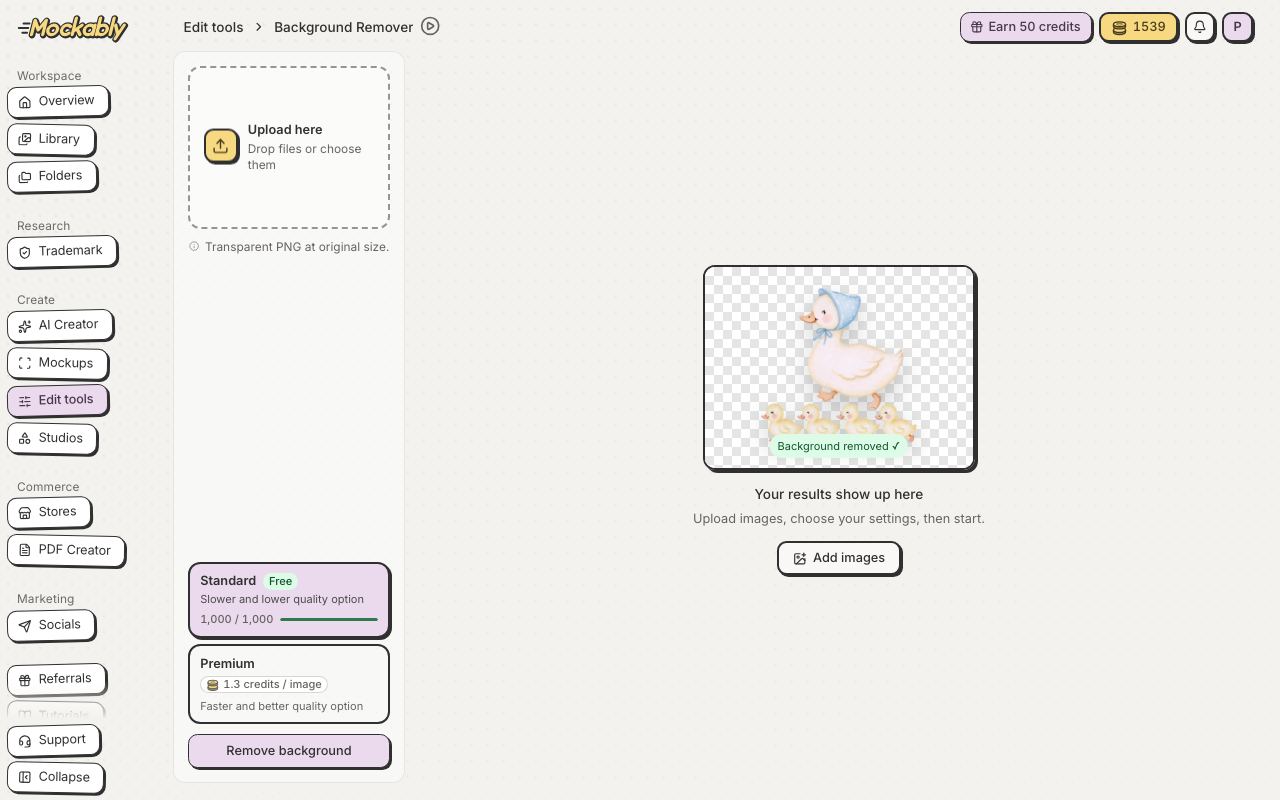
- Drop your images in the box. You can add a whole batch at once; the box shows your plan's limit.
- Standard is picked for you: it is made for designs on a plain background, such as clipart, drawings and stickers. Starter includes 50 free Standard removals a month, Pro 300 and Studio 1,000; after that each one is 0.5 credits. For photos and busy backgrounds, pick Premium (1.3 credits). If Standard cannot find a plain background, it stops and gives your credits back.
- Click the Remove button. It shows how many backgrounds it will remove. Each batch lands in its own folder, which you can rename.
You can also remove a background without leaving your work. In the Design editor, use Remove background in the bar under the image. In Design Studio, select the image, open AI Edit and click Remove background. The cut-out is also saved in your Library.