Reuse a design: save it as a template or make a copy
Keep your own listing layouts as templates, and copy a design to make a new version.
1 min read
Made a listing image you like? Save it as a template and start every new listing from it. A template keeps every page, colour and font, and it never changes when you edit a design made from it.
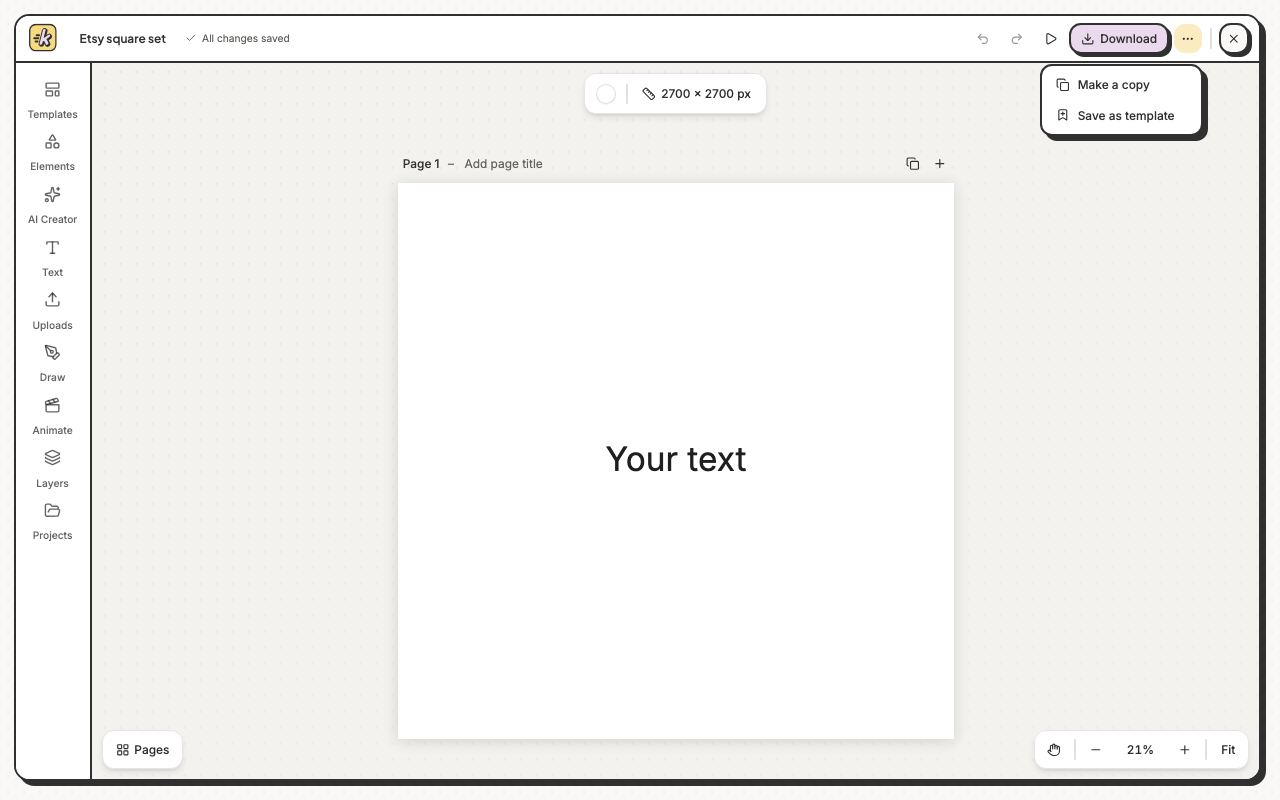
- Open your design and click the ⋯ button in the top bar (More design actions).
- Click Save as template, check the name, then click Save template.
- To use it, click Create a design, then My templates, and click your template. Your designs page also lists My templates under your designs.
- Each click starts a new design from the template. Change the pictures and words for your next listing.
To make a copy, click ⋯ in the top bar, then Make a copy. The copy opens, named Copy of and the design's name. On your designs page, the ⋯ on each design also has Duplicate design and Save as template.