Make a thank-you or delivery PDF
Build the PDF buyers download with your listing: a thank-you note, a download guide or a collection page.
2 min read
PDF Creator is under Commerce in the menu. It makes the PDF buyers get with a digital listing, filled in from your listing and your brand.
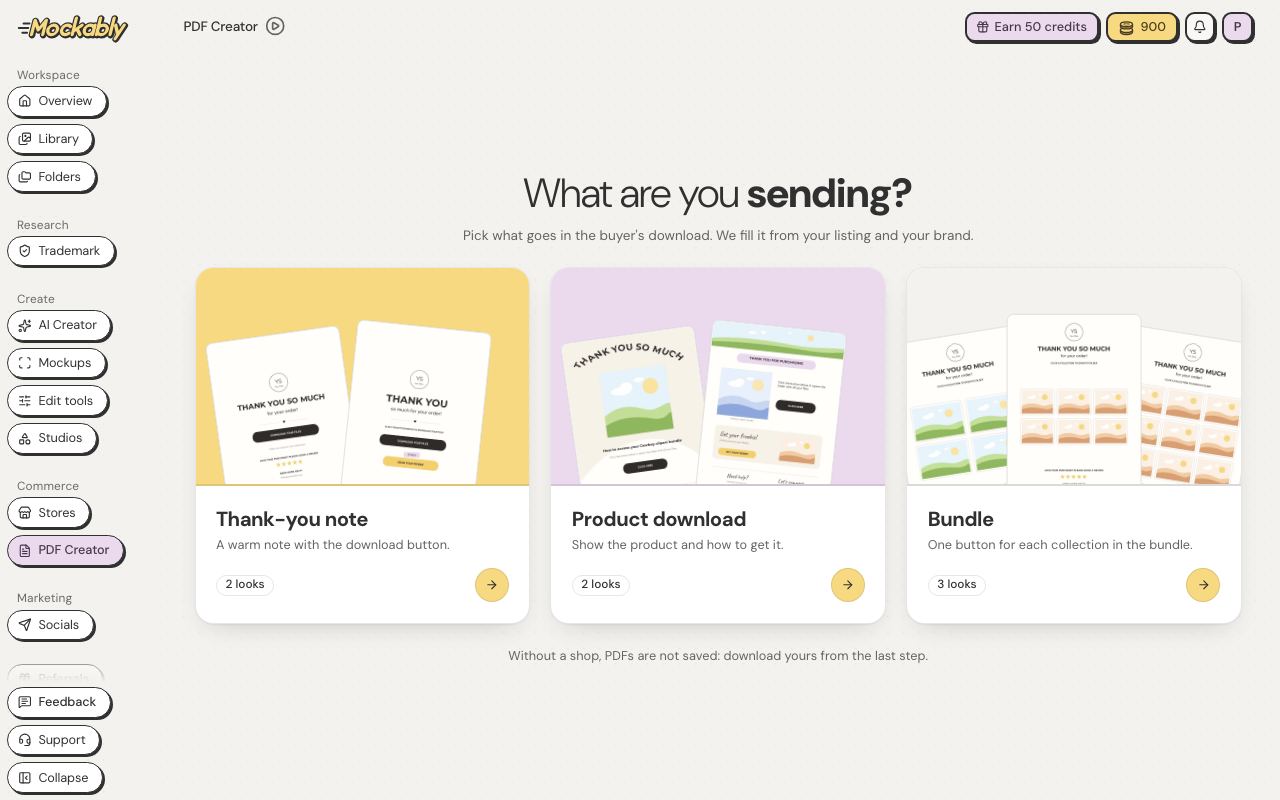
- Click PDF Creator in the menu.
- Under What are you sending?, pick what goes in the buyer's download.
- Under Shop and brand, choose your shop and brand. Both are optional: with No shop, you just make the PDF and download it, and it isn't saved. Then click Next: pick a look.
- Under Pick a look, choose one, such as Classic thank-you, Product spotlight or Download guide, then click Use this look.
- Change the Listing, the words On the page, the Brand, the Extras and the Look. Then click Download PDF, or Create a product to start a new listing in Stores with this PDF already in its files (this needs a shop). Inside a listing, click Add to listing instead. Each of these saves the PDF with your shop. Save template keeps this set-up for next time.
The Classic and Simple thank-you looks can have a Top image across the top of the page. The Show logo switch puts your brand logo on the page or takes it off. Under Text size, pick Small, Medium or Large to change every line of text at once.
Collection looks have a tile for each collection: click Add collection image to pick one of your listings or one of your own pictures. Custom collections takes up to 30 collections, and nine fit on the first page.
To change more, click Open full editor at the top of the panel. The full editor opens over the whole screen, laid out like Design Studio: Elements, Document, Brand and Layers on the left. Click any part of the page and its options show in the bar above it, such as size, colours, a button's corners (Square, Rounded or Pill) or a link on a picture. Double-click words to change them. With No shop, Open full editor does not show. Click Save to keep your changes and go back to your PDF, where you can download it, create a product, add it to a listing or save it as a template. If you leave with changes you haven't kept, you're asked first.