Library storage: what counts and how to get more
What uses your Library storage, what happens when it is full, how to free space and how to add extra storage.
3 min read
Your plan gives your Library a set amount of space. Everything you keep there uses some of it. The Storage box at the bottom of the Library menu shows how much you use.
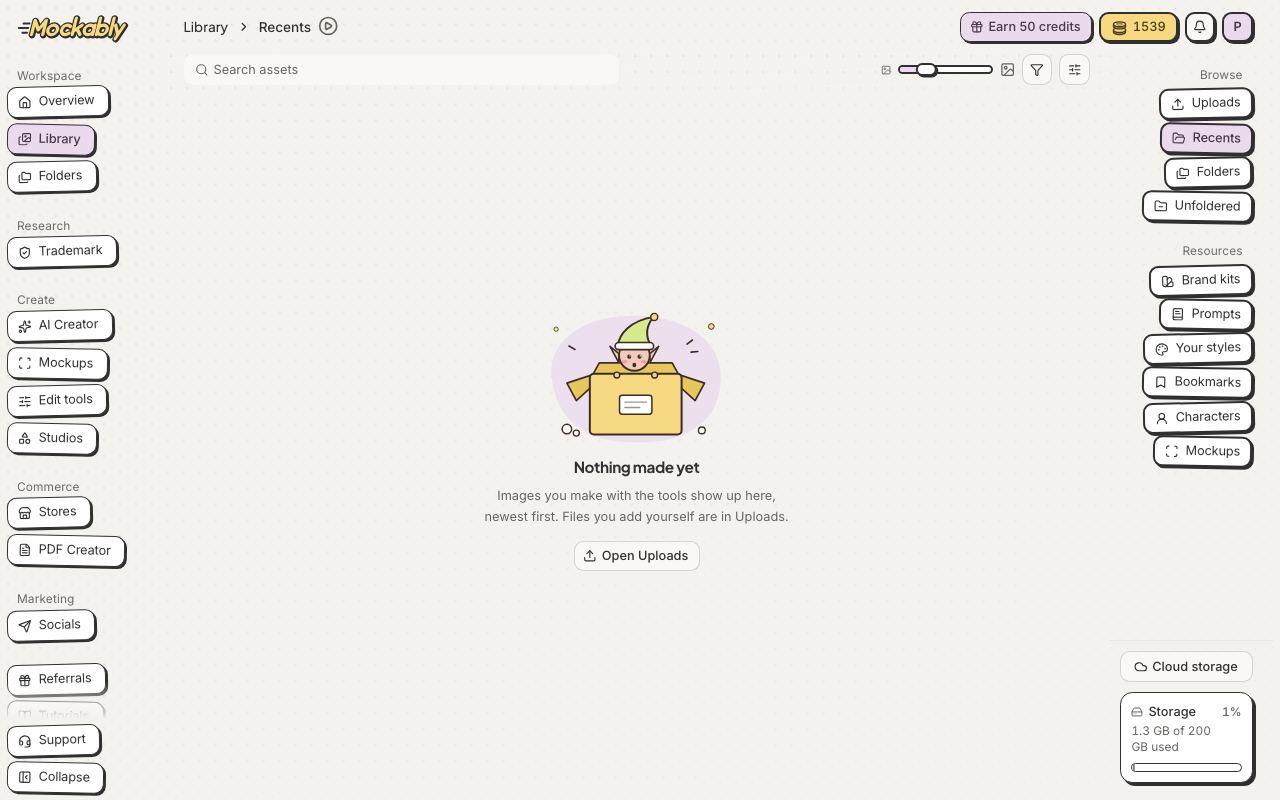
- What counts
- Originals, every version, uploads and tool results you keep
- What does not count
- Items you removed in the last 30 days. You can still restore them
- Extra storage
- On a paid plan, raises your limit for as long as you keep it
- Click the Storage box at the bottom of the Library menu.
- To free all the space it shows, go to the next step. To pick, tick images under Or choose images, or click Select all.
- Click the Free button at the bottom, for example Free 645 MB, then Free space. Your current images stay. Only the older versions go.
- Changed your mind? Click Undo right after. Removed versions can be restored for 30 days.
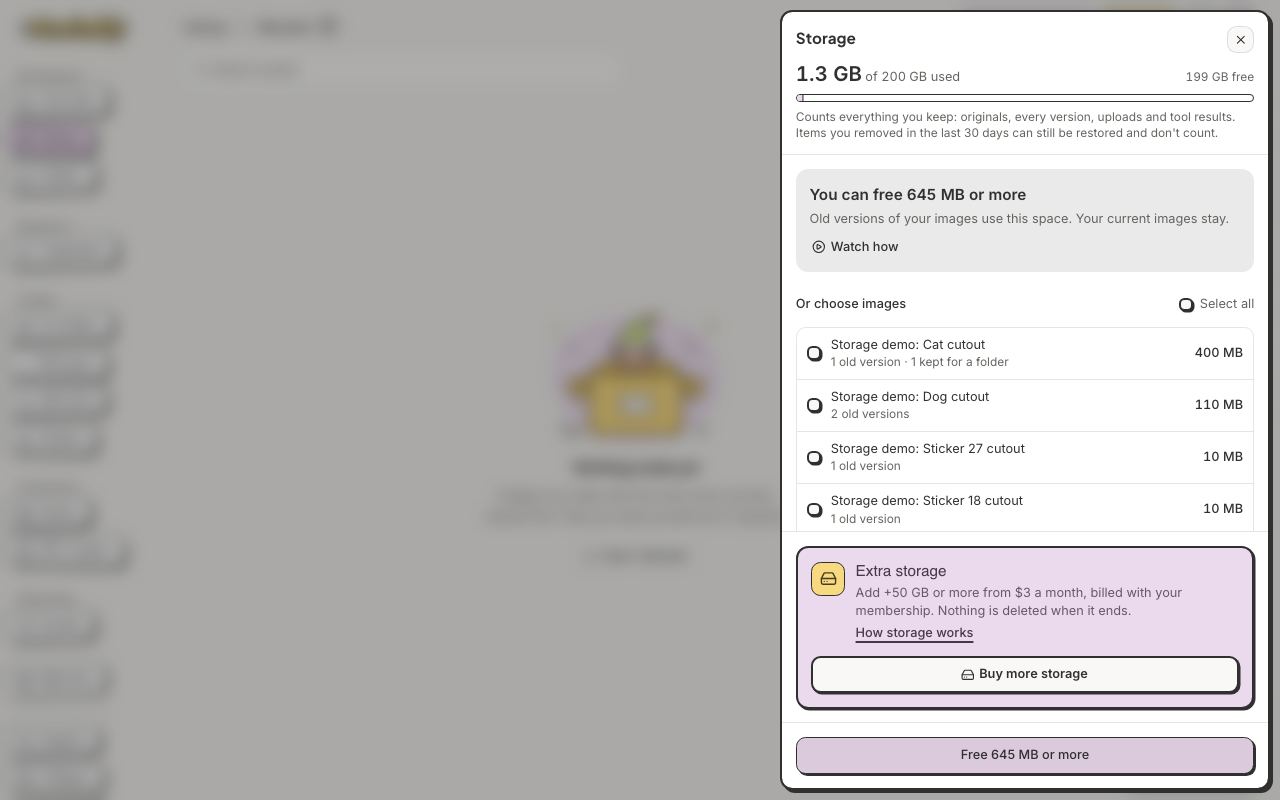
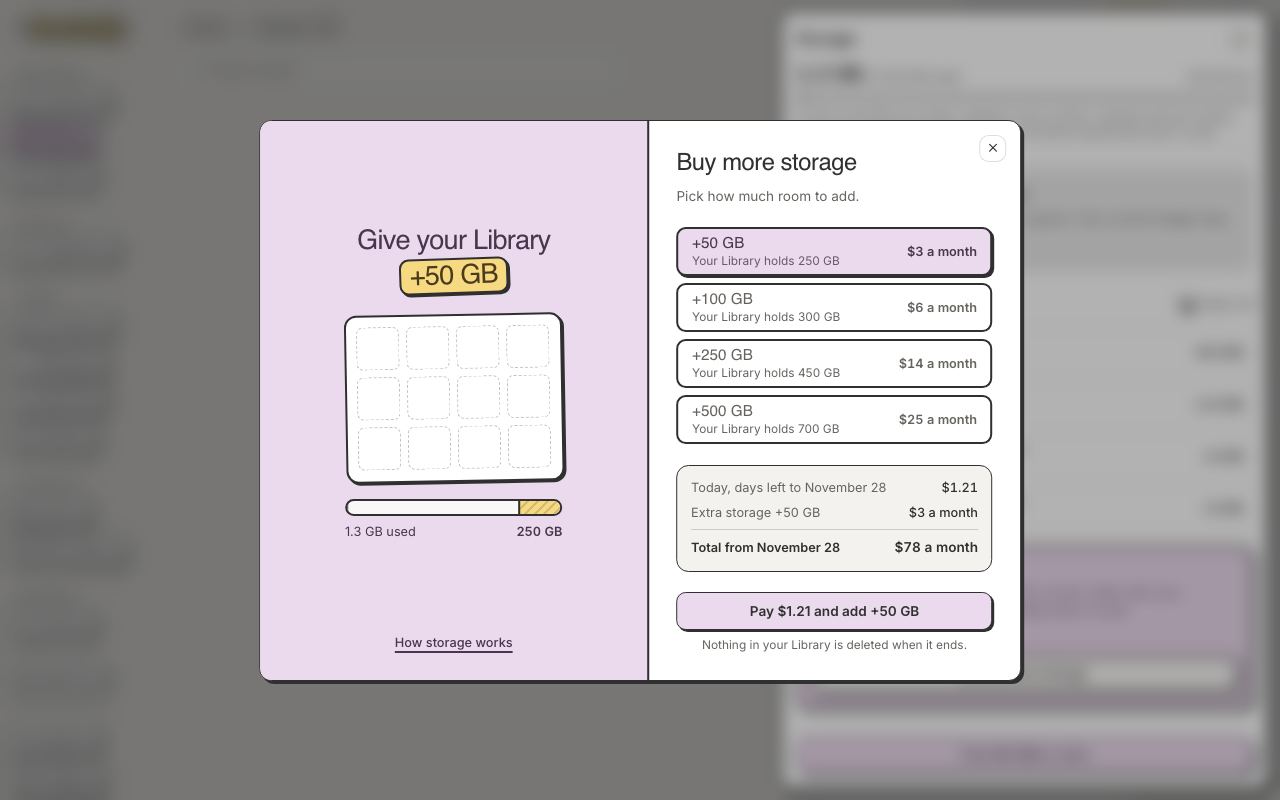
- In the Storage panel, click Buy more storage, or Change storage if you already have some.
- Pick a size. Each one shows what your Library will hold. A size smaller than what you keep says Too small for your Library.
- Check what you pay Today and your new total from your next renewal: Total a month, or Total a year on a yearly plan.
- Click the button at the bottom. It names the price and the size, for example Pay $1.21 and add +50 GB. The pop-up then shows what your Library holds. Click Got it.
- A bigger size
- Starts today. You pay only the difference for the days left until your renewal
- A smaller size
- Starts at your next renewal. Nothing to pay today. Your Library has to fit in it first
- No extra storage
- Stops at your next renewal. You keep the space until then, and nothing is deleted. Your Library has to fit in your plan first