Skip to content
All guides
Library & files

Link Dropbox, import from Google Drive, or copy to a drive

Bring files in, or send your work out.

1 min read
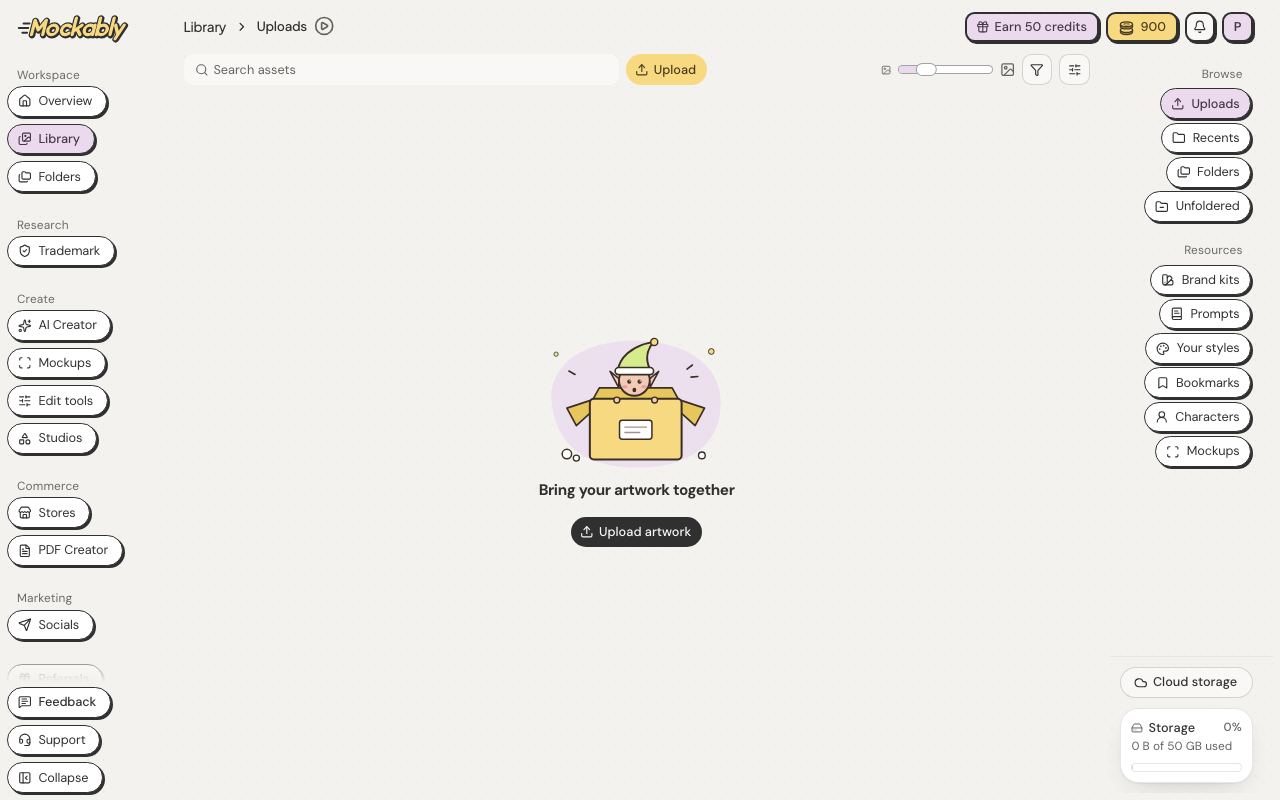
In Library, click Cloud storage.
1In Library, click Cloud storage.Show me
  1. Next to Dropbox, click Connect. Canva shows Coming soon: it opens soon.
  2. Sign in and allow access.
  3. Pick the folder you want, then click Add this folder. Already connected? Click Choose folder.
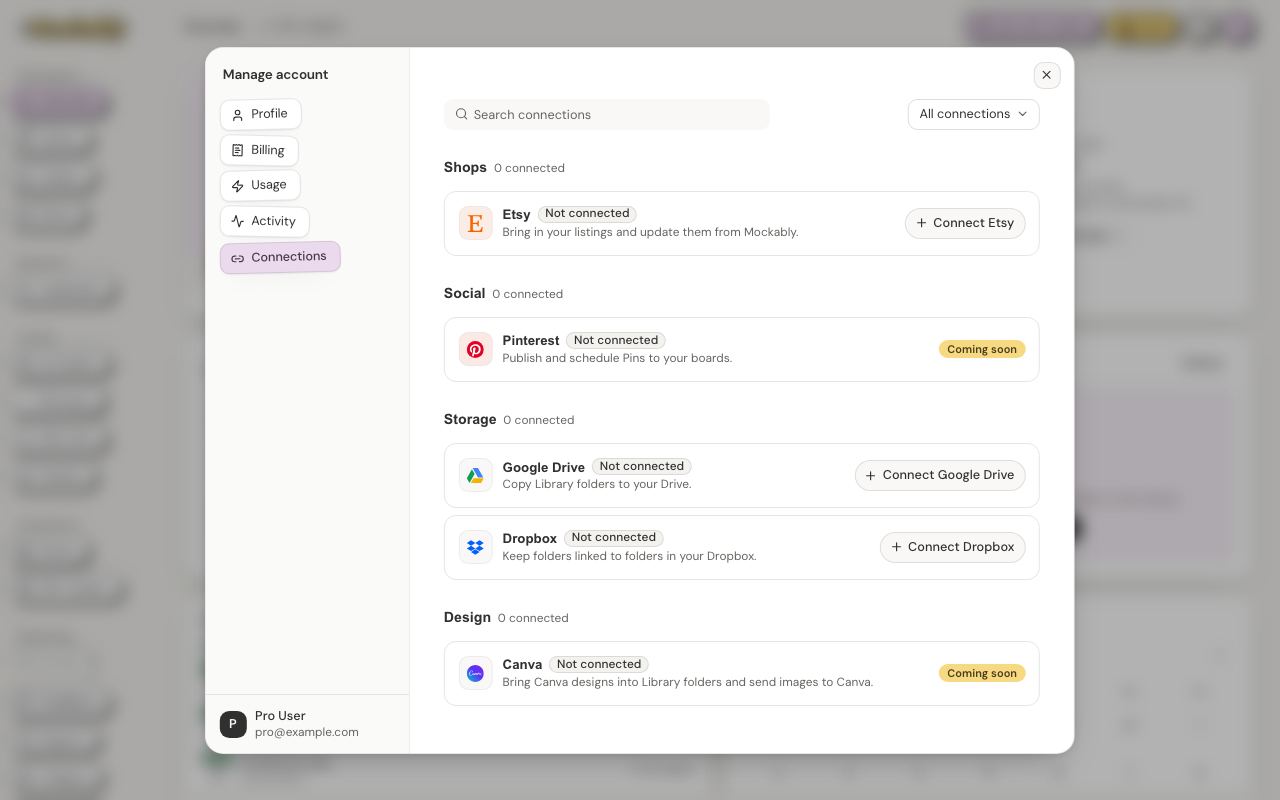
To bring images in from Google Drive, click Cloud storage in Library, then Import images next to Google Drive (click Connect first if it asks), open a folder and choose the images. Mockably can only open the images you choose. They go into a Library folder with the same name, or into Uploads. To send a folder to Google Drive or Dropbox, open its menu in Library, choose Copy to drive, then pick the drive and click Send. On Google Drive, Mockably only sees the files it creates. On Dropbox, it writes only to a “Mockably” folder it creates and asks for a separate permission for this. Linked Dropbox folders stay read-only. You can also connect Google Drive, Dropbox and Etsy from your avatar → Connections. Canva and Pinterest are coming soon. You choose JPG or PNG before the first copy.
2To bring images in from Google Drive, click Cloud storage in Library, then Import images next to Google Drive (click Connect first if it asks), open a folder and choose the images. Mockably can only open the images you choose. They go into a Library folder with the same name, or into Uploads. To send a folder to Google Drive or Dropbox, open its menu in Library, choose Copy to drive, then pick the drive and click Send. On Google Drive, Mockably only sees the files it creates. On Dropbox, it writes only to a “Mockably” folder it creates and asks for a separate permission for this. Linked Dropbox folders stay read-only. You can also connect Google Drive, Dropbox and Etsy from your avatar → Connections. Canva and Pinterest are coming soon. You choose JPG or PNG before the first copy.Show me

Still stuck?

Message the team from Support in the app, or send us a note here. A real person will answer.

Contact us

Try it on your own designs

Start free

20 free credits for new accounts · No credit card · Free plan available