Recolor Your Clipart Collection in Bulk 🎨
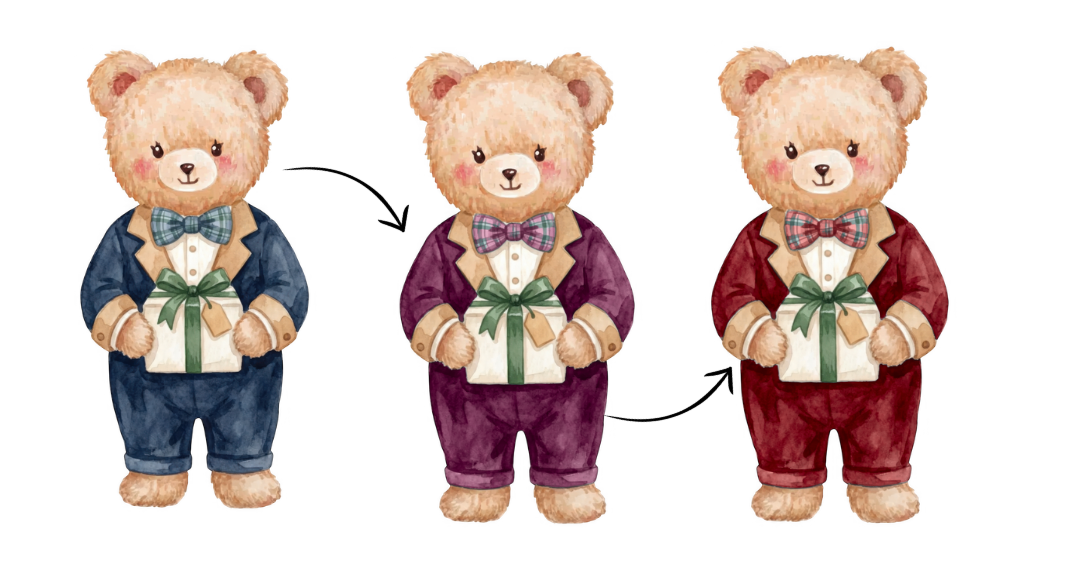
Recolor an entire clipart collection in bulk 🎨
Have you ever created a collection in blue and then wished you had the exact same collection in pink, purple or another color?
Before, that could mean recreating every image, upscaling everything again, removing the backgrounds again and doing all the cleanup again 😭
With Recolor, you can now do it in bulk.
✨ How it works
Upload up to 100 PNG images from your collection.
Choose the color you want to replace, then select your new color. Mockably will automatically apply the change across the entire collection so you can preview the results before downloading.
You can also adjust the brightness, vibrance and how many faded or similar shades should be included.
🖌️ Fix individual images
AI and automatic color detection will not always get every little area perfect, so I also added a Fix Areas editor.
Here you can:
• Recolor areas that were missed • Protect areas you want to keep in the original color • Adjust the color tolerance • Include nearby or faded shades • Make small corrections with the brushes • Compare your recolored image with the original
I recommend reviewing your images one by one before downloading your final collection.
📥 Download your collection
Once everything looks good, download the full collection.
Your files keep their original dimensions, transparent background and 300 DPI.
⚠️ IMPORTANT
Your Recolor session is not saved to your Mockably account.
If you refresh or close the tab before downloading, your work will be lost.
So always remember:
Upload → Recolor → Review → Fix → Download 💛
💛 Included with Pro + Studio
Recolor is FREE to use for Pro and Studio members, so it does not use any credits.
This means you can take one finished collection and create several different color variations without repeating your entire creation and cleanup workflow 👀✨